How to investigate uneven PC game performance methodically
Before changing hardware, separate a game library issue from a measurable PC latency problem. A controlled check of storage paths and frame stages can narrow the next step.
 By
Jenna Kowalski
By
Jenna Kowalski
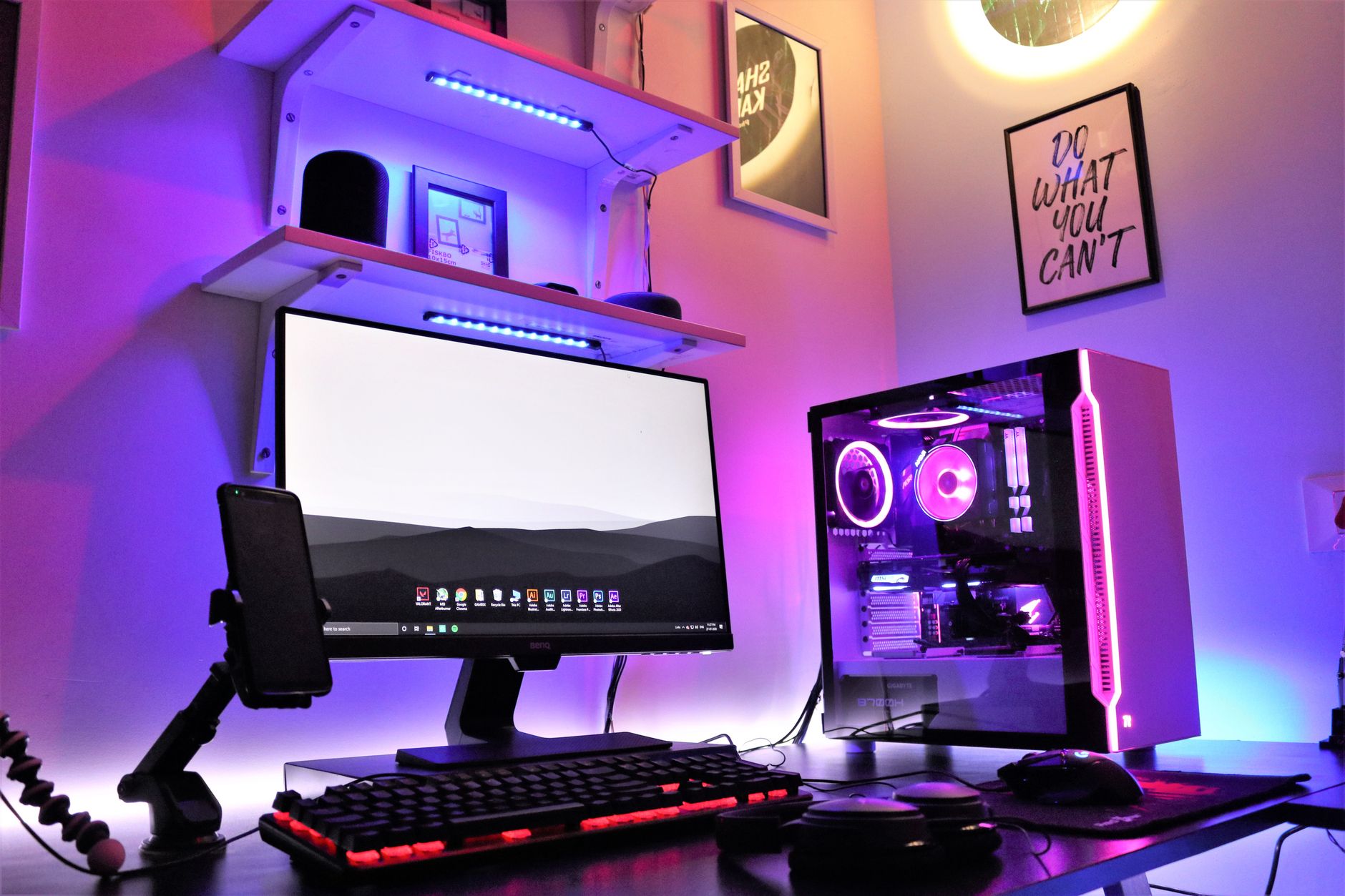
An uneven game does not automatically identify the failing part of a PC. The first useful move is to describe the symptom precisely and keep the test repeatable. If the same game, display mode and route are used each time, a change in behaviour can be connected to a change in configuration. That discipline makes it easier to investigate without replacing components on a hunch.
In brief
- Steam libraries use a defined game-directory and appmanifest structure, making the active installation path a useful first check.
- PC latency is split into distinct input, frame-processing and presentation stages in NVIDIA’s supported measurement model.
- Windowed mode and dropped frames can alter how latency measurements should be interpreted.
Start by mapping the installation
Steam can use more than one library folder. According to ArchWiki, games are installed under a library’s steamapps/common directory, and Steam needs an appmanifest file in that library’s steamapps directory to recognise a game. Before drawing conclusions from a troublesome title, identify the library in which it is installed and verify that Steam still recognises it as expected.
This is especially useful when a PC has accumulated several drives or library locations. The game directory and its appmanifest belong to the same library structure, so a clear record of the active library gives a firm starting point for later checks. ArchWiki also notes that Steam allows additional library folders through its storage settings. ArchWiki’s Steam documentation provides the directory layout and the route for adding a library.
A controlled test does not require a dramatic intervention. Record the current library, reproduce the issue, then make one reversible configuration change only if there is a reason to do so. Keeping the original setup documented matters as much as trying a new one: it leaves a comparison point if the symptom changes or becomes harder to reproduce.
Do not collapse latency into frame rate
Frame rate and latency are related to the experience of a game, but they are not the same measurement. NVIDIA describes end-to-end system latency as the combination of peripheral latency, PC latency and display latency. Its PC Latency Stats focus on the main PC component of that chain, not the entire end-to-end path.
Within that PC measure, NVIDIA separates three stages: input-to-frame-start, frame-start-to-present and present-to-displayed latency. The first is measured from a latency input event to the start of the next tagged frame. The second covers time from frame start to the Present call, and the third runs from that call to the frame-buffer flip. This breakdown is more informative than treating every delayed response as a single FPS problem. NVIDIA’s explanation of PC latency measurement details the events used to follow a frame through those stages.
The method has limits that are worth retaining. NVIDIA says PC Latency Stats needs integration through the Reflex SDK or an Unreal Engine plugin for real-time measurement in supported games. It also says the calculation excludes USB software latency. A reading from this system is therefore a defined PC-latency measurement, not an all-purpose account of every possible delay between a player’s action and the image on screen.
Windowed measurements need context
Windowed mode can complicate latency readings. NVIDIA explains that frames can be dropped and not displayed in this mode. When a tagged frame is dropped, the input-to-frame-start value is extended across consecutive dropped frames until a displayed frame is reached. That behaviour is part of the measurement design, so a result should be read with the display mode attached to it.
The article gives an example involving a game running at 200 FPS in windowed mode on a 60 Hz display, where two to three frames may be dropped for every displayed frame. This is not a general prescription for every setup. It is a reminder that refresh rate, presentation mode and the status of dropped frames can affect how a latency figure is interpreted.
Shader files are a separate technical question
Shader terminology can also blur a diagnosis. Microsoft Learn distinguishes HLSL source files from compiled shader objects. Its documentation explains that HLSL source can be compiled during the build process into binary shader-object files or byte arrays, and that applications can also use D3DCompileFromFile at runtime for Direct3D 11. Those are specific software paths, not proof that every interruption in a game has the same cause.
For a careful investigation, note whether a symptom occurs on a repeated route, after a configuration change or alongside a different library setup. Then keep each observation separate from the explanation. A technical description of shader compilation can clarify what software may do, but it should not be used to label an issue without evidence from the game or its tools. Microsoft Learn’s HLSL compilation documentation describes the source and compiled-file distinction.
A measured troubleshooting order
- Reproduce the issue using the same game location, display mode and route.
- Identify the active Steam library and confirm that its game directory and appmanifest are present.
- Record whether the concern is a frame-rate observation or a supported latency measurement.
- For latency data, retain the display mode and refresh context with the result.
- Change one reversible condition at a time and repeat the same test.
- Keep a short record of the original configuration and each observed outcome.
This approach does not promise a diagnosis from one number. It creates a cleaner trail from observation to test. For more PC play coverage, visit our PC gaming guides.
Photo: Sharad Kachhi / Pexels