Game accessibility settings that can remove real barriers
Subtitles, contrast, remapping, simplified controls, and cognitive aids solve different problems. The useful question is whether a setting addresses the barrier a player actually encounters.
 By
Jenna Kowalski
By
Jenna Kowalski

An accessibility setting matters when it addresses a concrete obstacle to playing. That obstacle may be text that is too small, dialogue that cannot be followed, a control layout that is difficult to use, or an interface that asks the player to retain too much information. The two supplied accessibility guides stress the same principle: options are varied, and no single one makes every game accessible for every person.
In brief
- Subtitle controls, text size, contrast, colour settings, and visual sound indicators can improve access to game information.
- Remapping, simplified inputs, adapted controllers, eye tracking, and breath controls address different motor barriers.
- A detailed accessibility sheet helps establish whether a title supports the adjustment a player needs.
Make information easier to perceive
Subtitles are one of the clearest starting points, but a simple on-off switch may not be enough. GameHer lists options such as text-to-speech narration, speaker names, sign-language translation, and different subtitle and background colours. Portail-Handicap also identifies subtitles for dialogue and important sounds, colour-coded captions, and larger subtitle text as relevant tools for deaf or hard-of-hearing players.
Visual clarity extends beyond dialogue. Both sources discuss larger text and stronger contrast. Portail-Handicap describes increasing the size of menus, subtitles, and dialogue, alongside higher contrast and colour modes for colour blindness. GameHer cites the ability to change font size and adjust HUD elements such as chat, health bars, maps, and customization screens. These are separate controls: making a subtitle larger does not necessarily make a dense HUD easier to read.
Colour can help identify information, but GameHer’s examples also include highlighting enemies and interactive objects. This can make important elements easier to distinguish in a busy scene. Portail-Handicap adds visual indicators for directional sounds, such as an icon indicating that an enemy is approaching from one side. The useful setting is the one that makes the relevant signal available in a form the player can use.
Adapt the controls to the player
Control barriers can come from the layout itself, not just from the difficulty of an encounter. GameHer defines control binding as the ability to change game controls across keyboard, controller, or other inputs. Portail-Handicap similarly describes remapping buttons, simplifying complex combinations, extending reaction time, and reducing the number of buttons required. These functions can address different needs, so a game should not be judged by the presence of only one of them.
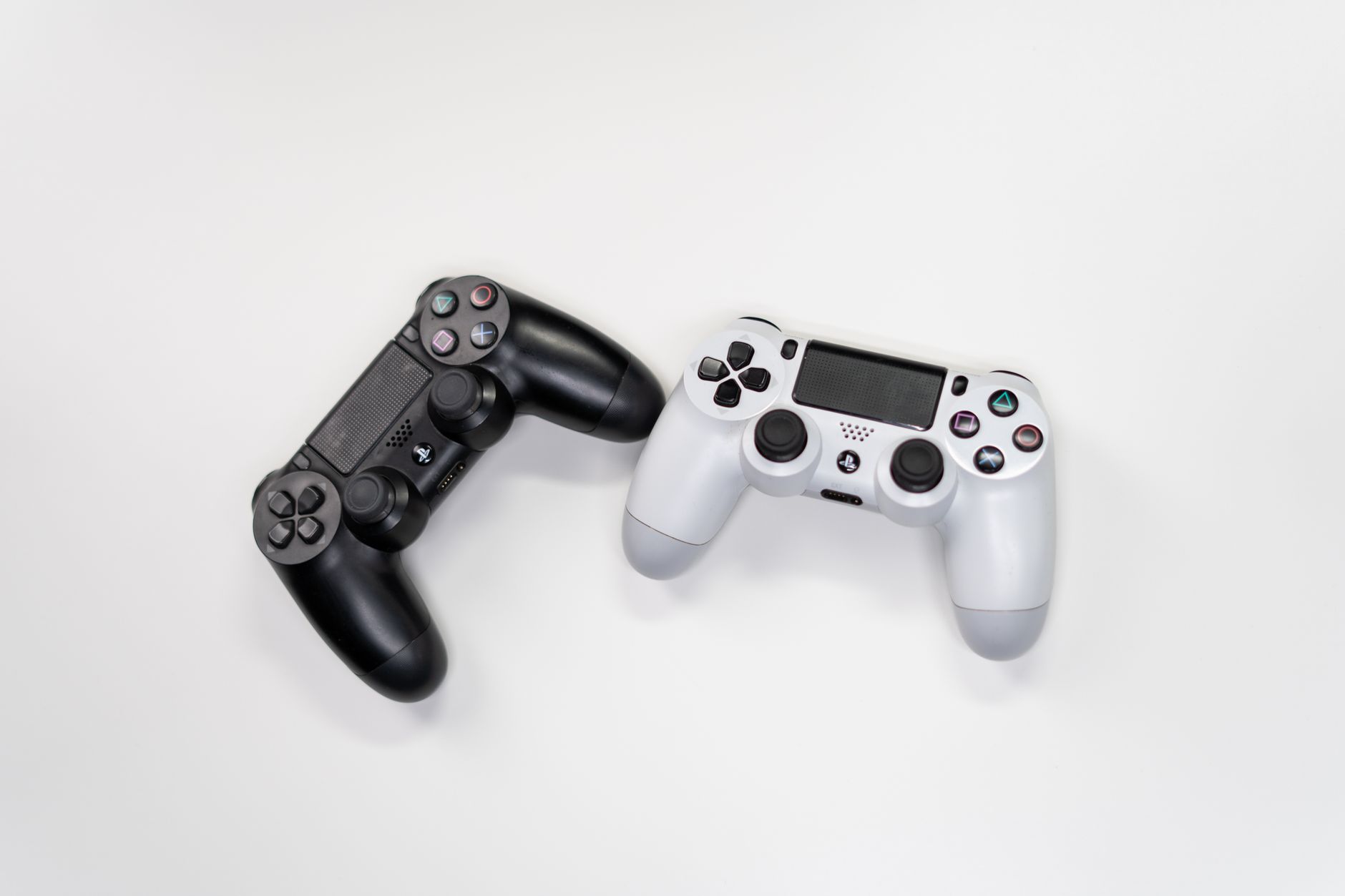
External equipment can also matter. Portail-Handicap notes adapted controllers, custom joysticks, eye-tracking, and breath controls among the possibilities for motor accessibility. It also warns that compatibility must be checked for the game and platform in question. The point is practical: a device or remapping approach cannot be assumed to work everywhere merely because it is useful on one system.
Before committing to a game or accessory, the guide recommends consulting a detailed accessibility sheet on a developer site or a specialist database. That is more useful than relying on a vague accessibility label. A player needs to know whether the title permits the adjustment that matches the difficulty they face.
Difficulty settings can target pressure
Accessibility settings are not limited to reading and input. GameHer includes adjustable difficulty among the options that can be adapted, while Portail-Handicap mentions stress-reducing modes that can remove time limits, reduce enemies, or lower difficulty. Such changes can make a game’s demands more manageable for some players.
The sources also point to controls that alter a particularly distressing element. GameHer mentions the option to remove jump scares in some horror games and an arachnophobia mode in Satisfactory that replaces spiders with cats. These examples underline why a menu should be read feature by feature. “Difficulty” does not tell a player whether the game offers a solution for time pressure, frightening content, or a specific input challenge.
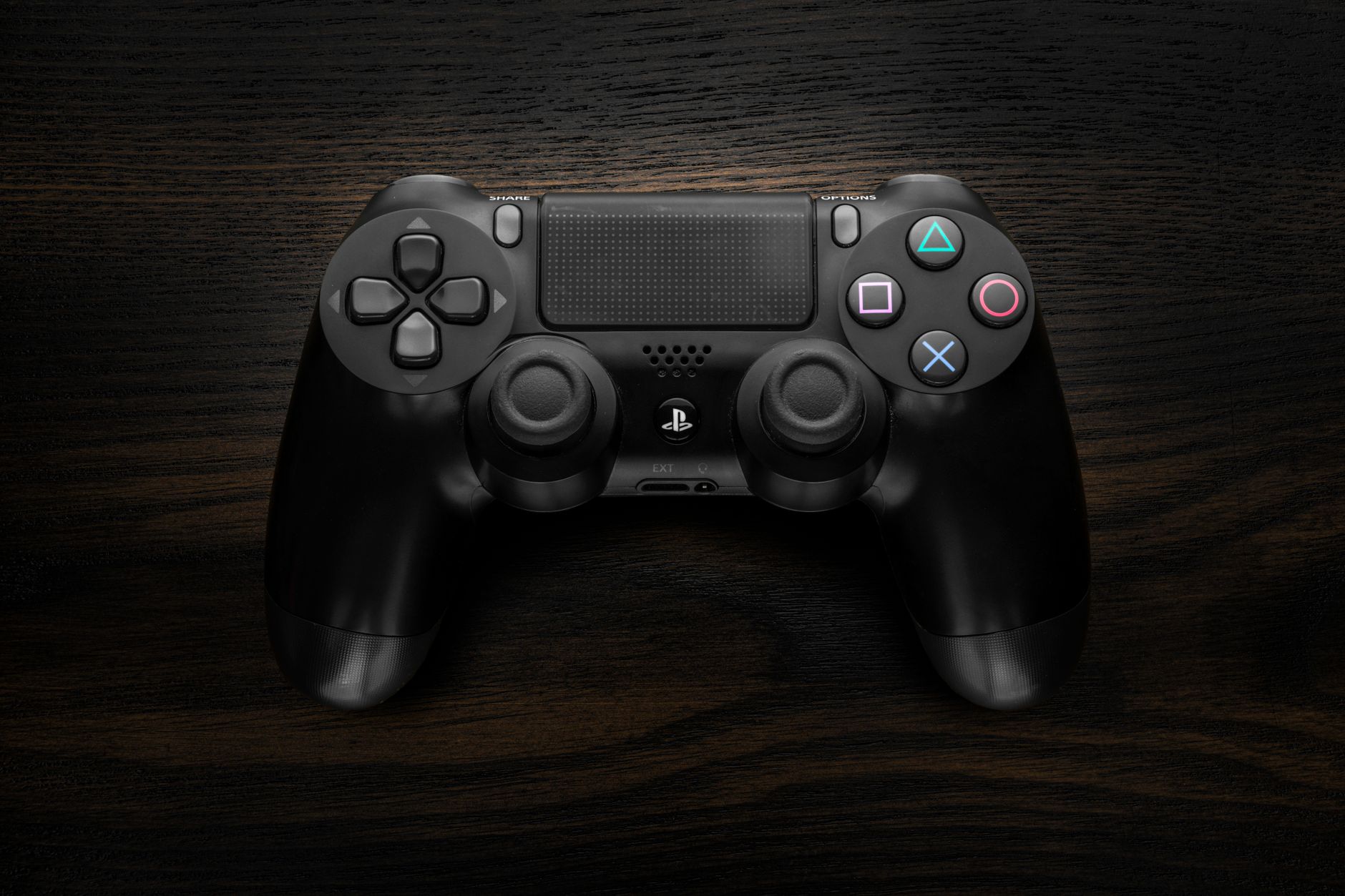
There is an important limit to keep in view. GameHer states that options often improve usability without automatically making a game completely accessible. A long list of settings can still leave a particular barrier in place. The relevant test is not the number of toggles, but whether the required adjustment is available and understandable.
Reduce cognitive load where needed
Cognitive accessibility can involve the way information is presented. GameHer applies the principle of minimizing memory load: actions, objects, and options should be visible or easy to retrieve rather than requiring the player to memorize information across screens. Its Lost Ark example describes an interface that changes to show relevant controls during combat, travel, or resource gathering.
Portail-Handicap similarly lists simpler interfaces, highlighted objectives and interactive elements, guidance for paths, and clear instructions without jargon for people with cognitive needs. These choices can make it easier to locate the next action rather than search through a crowded display. GameHer also notes that unnecessary information competes with relevant information, using a transparent dungeon map as an example of keeping orientation visible without obscuring play.
Clear feedback is another part of the experience. GameHer’s discussion of usability principles includes keeping people informed about what is happening and presenting errors in plain language with a suggested remedy. This does not belong only in an accessibility menu. A player needs the information while playing, when a decision or correction is required.
How to assess a game’s options
- Name the specific barrier, such as small text, missing sound information, a difficult button combination, or a cluttered interface.
- Look for the setting or equipment support that addresses that barrier directly.
- Check the game’s detailed accessibility information and relevant platform compatibility.
- Test the setting in the part of the game where the obstacle occurs.
- Keep the option if it improves the experience, and combine adjustments where the game permits it.
Accessibility is not one preset. It is the capacity to adapt a game around different sensory, motor, and cognitive needs. For related coverage, visit our geek culture guides. The concrete options collected by GameHer and Portail-Handicap.fr offer a useful reminder: the best setting is the one that removes the barrier in front of the player.
Photo: Matilda Wormwood / Pexels