Sharper iPhone photos start with light, focus and the lens
A smudged lens is only the first suspect; dim scenes, slow shutters and wandering focus explain most soft iPhone shots, and each has a practical remedy.
 By
Marcus Delaney
By
Marcus Delaney
In brief
- Clean the lens with a microfiber cloth, never tissue paper or a shirt.
- Low light weakens focus, slows the shutter and adds noise.
- Night mode on iPhone 11 and later brightens dim scenes automatically.
- Shutter speed and ISO control require a third-party app such as Camera+.
When an iPhone picture comes out soft, the problem usually sits deeper than a fingerprint on the glass. That is the diagnosis offered by Engadget, which still puts the lens at the top of the checklist, simply because it is the quickest thing to rule out before touching any setting.
Rule out the lens first, and clean it properly
Start by taking the phone out of its case. A case edge can hide grime around the camera bump, and you want full access to the glass. Then reach for a microfiber cloth. The tempting shortcuts, a tissue or the hem of whatever you are wearing, are exactly what Engadget advises against.
Some marks resist a dry wipe. In that case, put a tiny amount of distilled water on the cloth itself, not on the lens, and go over the glass gently. If the photos are still soft once the lens is spotless, the cause lies elsewhere, and the most likely suspect is light.
Why dim scenes produce soft, grainy shots
Engadget singles out lighting as one of the main reasons pictures lose their crispness. Three things go wrong at once when a scene gets dark. The autofocus has less to work with, so it locks onto the subject less dependably. The camera tends to keep the shutter open longer to gather enough light, which gives any movement time to smear across the frame. And the sensor output picks up more noise.
Those effects stack. A photo or video taken in poor light can look blurry, grainy or blocky, and compression after capture makes the blockiness worse. The two exposure variables behind this deserve a short definition. Shutter speed is how long the sensor collects light for a single frame; when it slows down, motion blur becomes likely. ISO is how strongly the signal is amplified; pushing it higher makes noise more visible and degrades the image.
Apple’s own answer to dark scenes is Night mode, available on the iPhone 11 and newer models. It is marked by a moon icon at the top of the camera interface and you can switch it on yourself, though the phone also engages it automatically when light is low. Its job is to brighten the scene and record more detail than a standard capture would in the same conditions.
Settings and habits to work through
Beyond the lens and Night mode, a few adjustments target the remaining causes. They work well as a routine, from the simplest system setting to extra gear.
- Check the resolution. Open Settings, then Camera, where resolution and frame rate options appear near the top. According to Engadget, anything above 720p will generally give a crisper result.
- Lock the focus. In the camera app, touch the part of the frame you care about and keep your finger there until the AE/AF LOCK label shows on screen. The camera then stops hunting for a new focus point while you compose.
- Take manual control of exposure. The built-in app does not let you set shutter speed and ISO directly. A third-party app such as Camera+ opens those controls, and it can be a real help on an older iPhone.
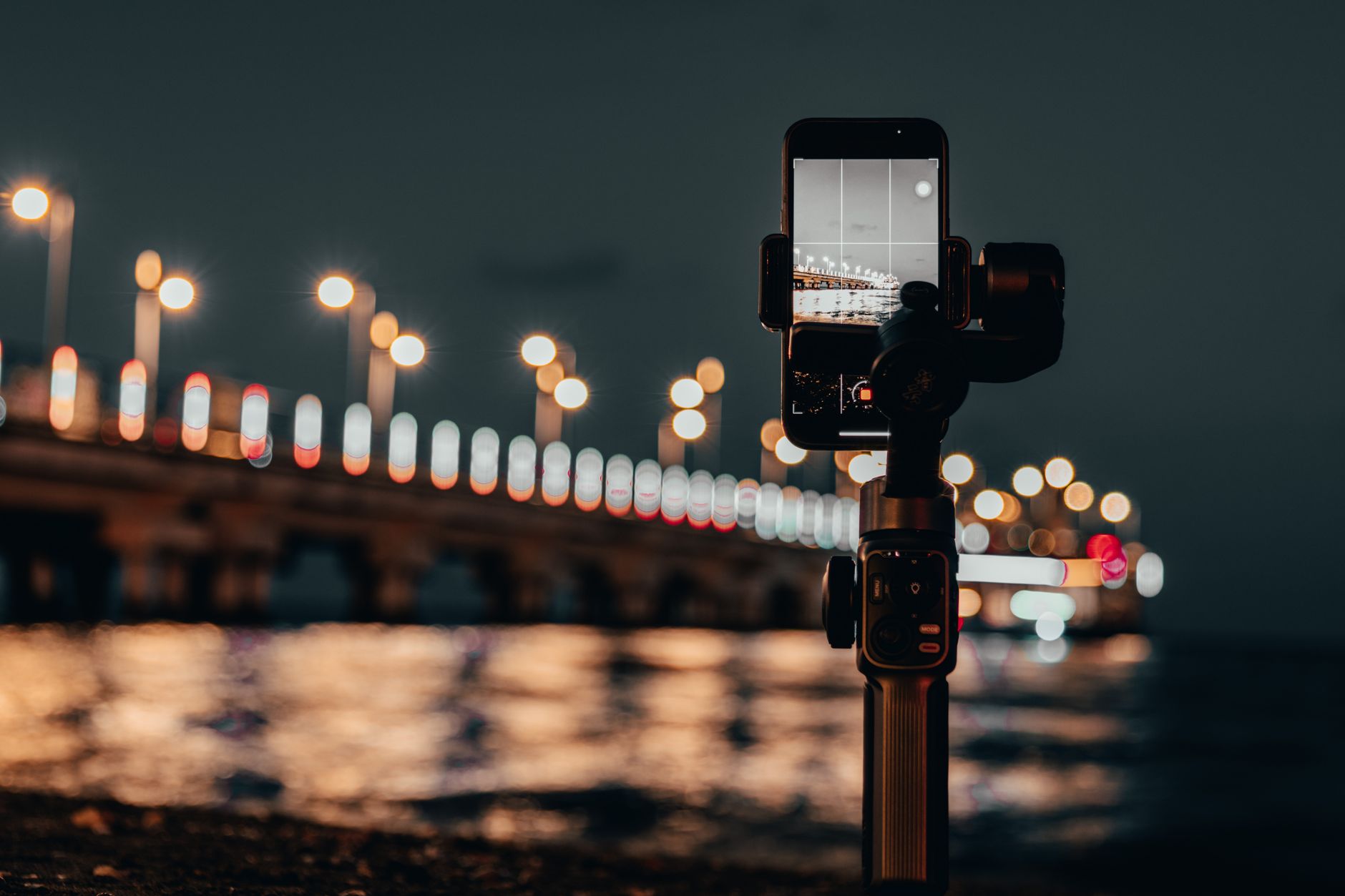
- Steady the phone. A tripod holds the iPhone still during long exposures, so the small tremors of your hands do not turn into visible blur, which matters most when light is scarce.
If you are running an older model, its camera hardware also differs from today’s phones in ways covered in our look at how iPhone displays changed, but the manual controls in an app like Camera+ remain the main lever Engadget points to for those devices.
Photo: mehmetakifarts / Pexels