Samsung DeX: where a phone desktop works, and where it stops
Samsung DeX can put a Galaxy workspace on a larger screen, but the useful setup depends on the device, display connection and the apps required.
 By
Andrés Salcedo
By
Andrés Salcedo
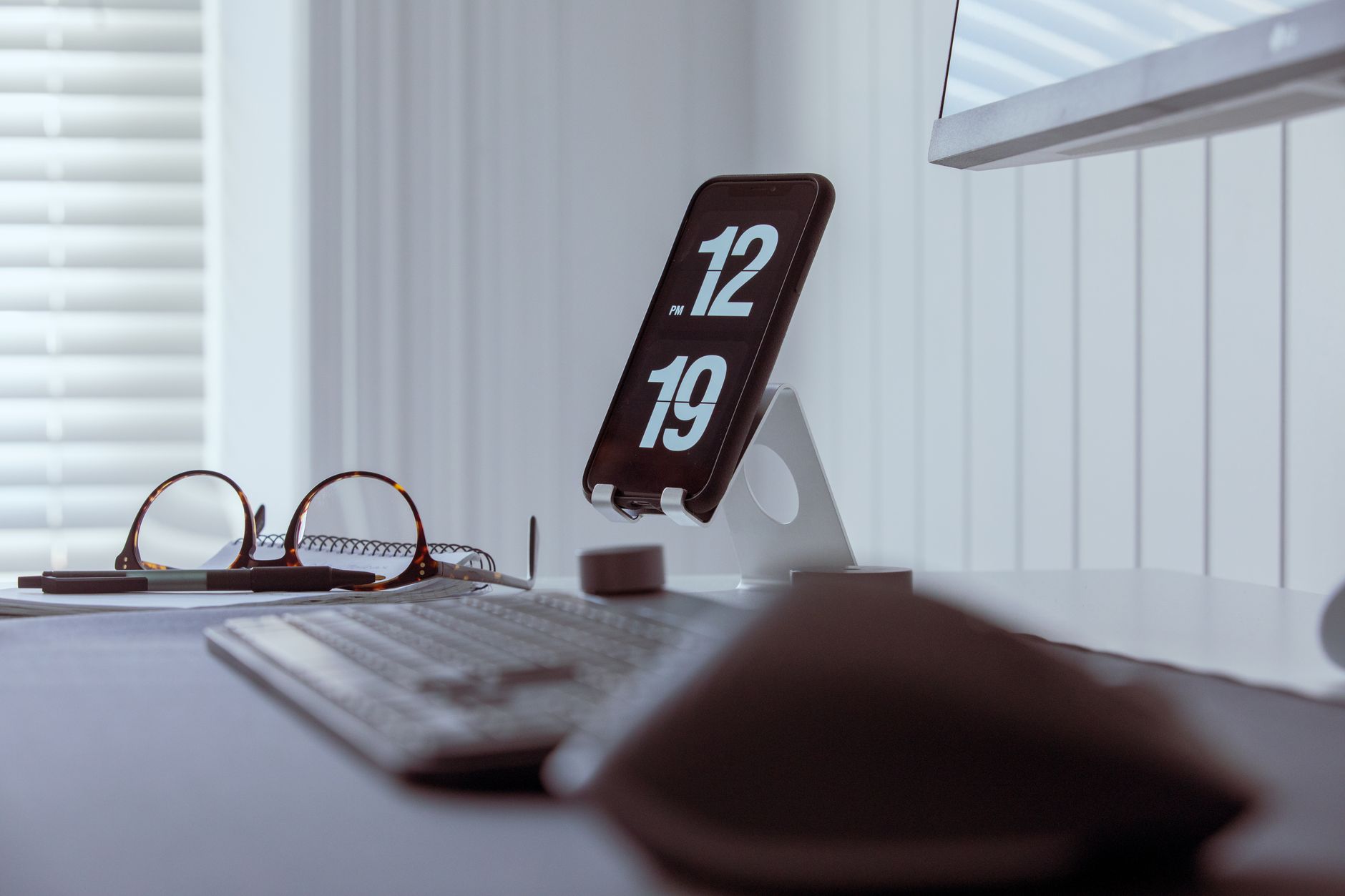
Samsung DeX can make a compatible Galaxy phone or tablet feel much less confined when it is connected to a larger screen. Windows can be resized and moved, a taskbar provides access to open apps, calls and messages, and the phone can act as a touchpad when no separate mouse is available. That is a practical arrangement for mail, web browsing, documents and presentations, but it remains an Android workspace rather than a conventional computer.
In brief
- DeX puts compatible Galaxy apps into a windowed workspace on an external display.
- A wired connection is presented as the simplest stable option, while wireless quality depends on the display.
- Newer Galaxy devices use Link to Windows differently from the former DeX for PC experience.
The distinction matters because DeX is often discussed as a simple laptop replacement. The evidence supports a more precise view. It can be a capable desk setup for selected tasks, especially when the exact device, display and applications have been checked first. It is less persuasive when an activity depends on protected video, an incompatible phone, or software that needs a full desktop operating system.
A desktop layout built around Android
Samsung presented DeX in 2017 as an Android environment adapted for a monitor, keyboard and mouse. Its announcement described resizable windows, contextual menus and a desktop browser, alongside mobile Microsoft Office and Adobe apps such as Acrobat Reader Mobile and Lightroom Mobile. Those details explain the appeal: familiar desktop conventions can make mobile apps easier to manage on a large display.
The current MobiDocs guide describes the same core arrangement in everyday terms. Apps open in movable, resizable windows, while a lower taskbar leads to active apps, calls, SMS and the app launcher. It says up to five apps can be displayed at once and that DeX offers up to four workspaces. File drag and drop between DeX windows is also described.
That makes DeX particularly suited to work that moves between a browser, messages, a document and a file manager. It does not establish that every Android app behaves well in a large, resizable window. The phone remains the machine running the software, and the sources do not claim that a desktop shaped interface turns a mobile app into its Windows or macOS equivalent. Readers looking for more device focused coverage can also browse our mobile technology guides.
Choosing the connection that fits the session
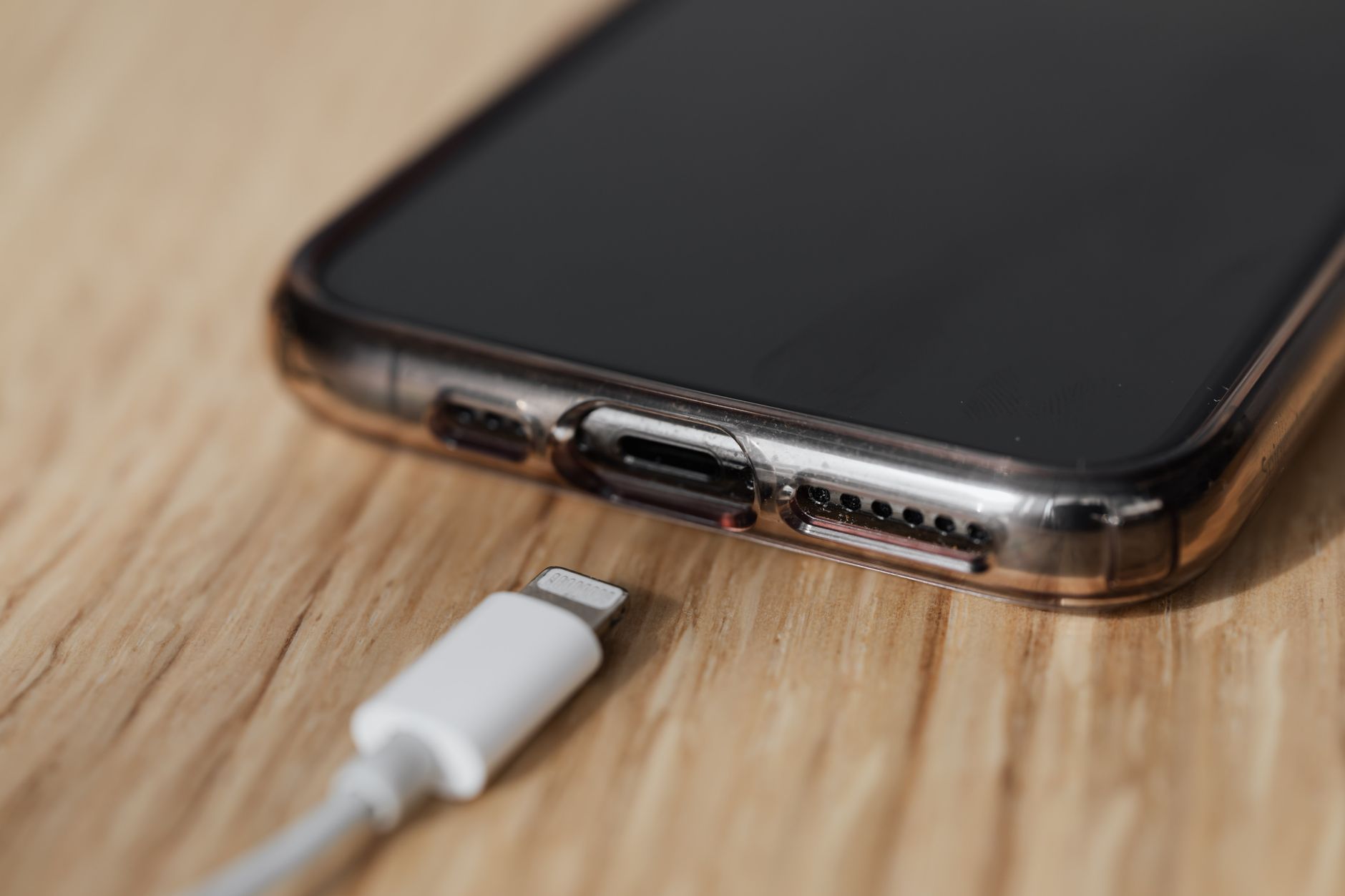
A wired connection is presented by MobiDocs as the simplest and most stable route. The guide lists a USB C to HDMI cable, a DeX cable, or a DeX dock or station as ways to connect a Galaxy device to a monitor or television. Once attached, DeX can appear on the external display while the handset stays available as a touchpad or keyboard. This can make a compact setup possible without carrying separate input hardware.
For longer work, a keyboard and mouse are the more natural companions. Samsung’s launch announcement said the original DeX Station accepted Bluetooth, USB and RF input devices. That station connected to an HDMI monitor and included two USB 2.0 ports, Ethernet, USB C, a fan and charging support. These are features of the 2017 station, not a guarantee about every modern dock or cable.
Wireless DeX removes the cable but adds another compatibility question. MobiDocs says it can connect to a compatible smart television over Wi Fi through the DeX control in Quick Settings. Samsung recommends a smart TV from 2019 or later for a smoother connection, according to the guide. Other Miracast capable televisions or boxes may work, though Samsung does not guarantee quality in that case. Neither supplied source provides comparative latency figures, so it would be misleading to promise that wired and wireless setups feel identical.
The PC route is no longer the old DeX route
Using a television or monitor is different from putting the DeX desktop on a Windows PC. MobiDocs says that Samsung DeX for PC is no longer available on newer Galaxy devices running One UI 7. It may still work on devices using One UI 6 or an earlier version, but Samsung no longer provides technical support for it.
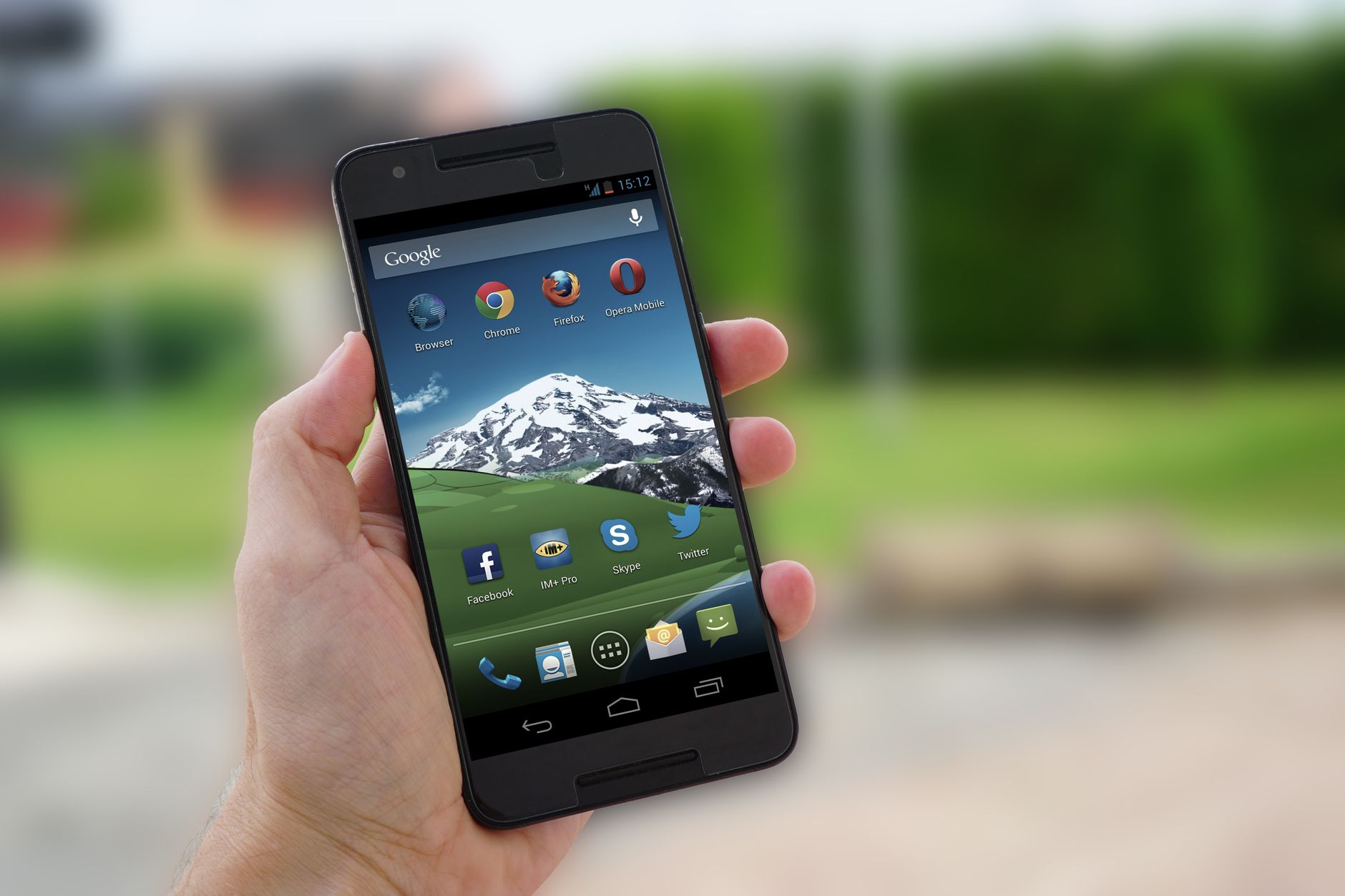
The alternative highlighted in the guide is Link to Windows. It can provide access to notifications, messages, calls, certain apps and files from a PC. MobiDocs also draws a clear boundary: it does not reproduce the full DeX desktop, full screen app behaviour, or a direct USB link between phone and PC. Anyone planning to use a laptop screen should therefore identify which experience their specific Galaxy version supports before buying accessories around it.
Compatibility and apps set the limits
DeX is not included across every Galaxy range. MobiDocs lists Galaxy Note devices from the Note8, certain midrange and higher end Galaxy Tab models from the Tab S4, plus the principal S and Fold lines. It also flags exceptions: earlier Z Flip models and the Z Flip7 FE are not compatible, while the Tab S9 FE and Tab S10 FE lack the HDMI output required for wired use. The guide notes that Samsung does not maintain an exhaustive, continuously updated list for every model.
The useful first check is consequently on the device itself: look for DeX in Quick Settings before purchasing a cable or dock. Then test the intended display and the exact applications. MobiDocs says some banking apps and video apps with protected content can show a black screen on the external display for security or rights management reasons. It also describes DeX as better suited to occasional office work, browsing and mail than to replacing a PC for demanding daily workloads.
Samsung’s 2017 material additionally described remote access to virtual Windows desktops through partners including Citrix, VMware and Amazon Web Services. That can be useful where an organisation already supplies such a desktop, but it is remote access rather than local Windows software running on the phone. The most reliable buying decision is not based on the word desktop alone. Confirm DeX on the Galaxy, choose the connection, try the needed apps and files, and make sure the phone can stay powered through the work session.
Verified references
- Samsung DeX : transformer son Galaxy en poste de travail, affichage externe et multitâche
- Samsung DeX transforme le smartphone en ordinateur de bureau : clavier, souris et multitâche
Photo: Lucian Petrean / Pexels